Adding a Contribution Manually
How to record cash, bank transfers, or un-forwarded M-Pesa payments.
BeginnerTreasurer
While KapuLetu automates M-Pesa processing via WhatsApp, you will often need to record payments made in cash or via direct bank transfer. You do this by manually adding the contribution.
1
Click 'Add contribution'
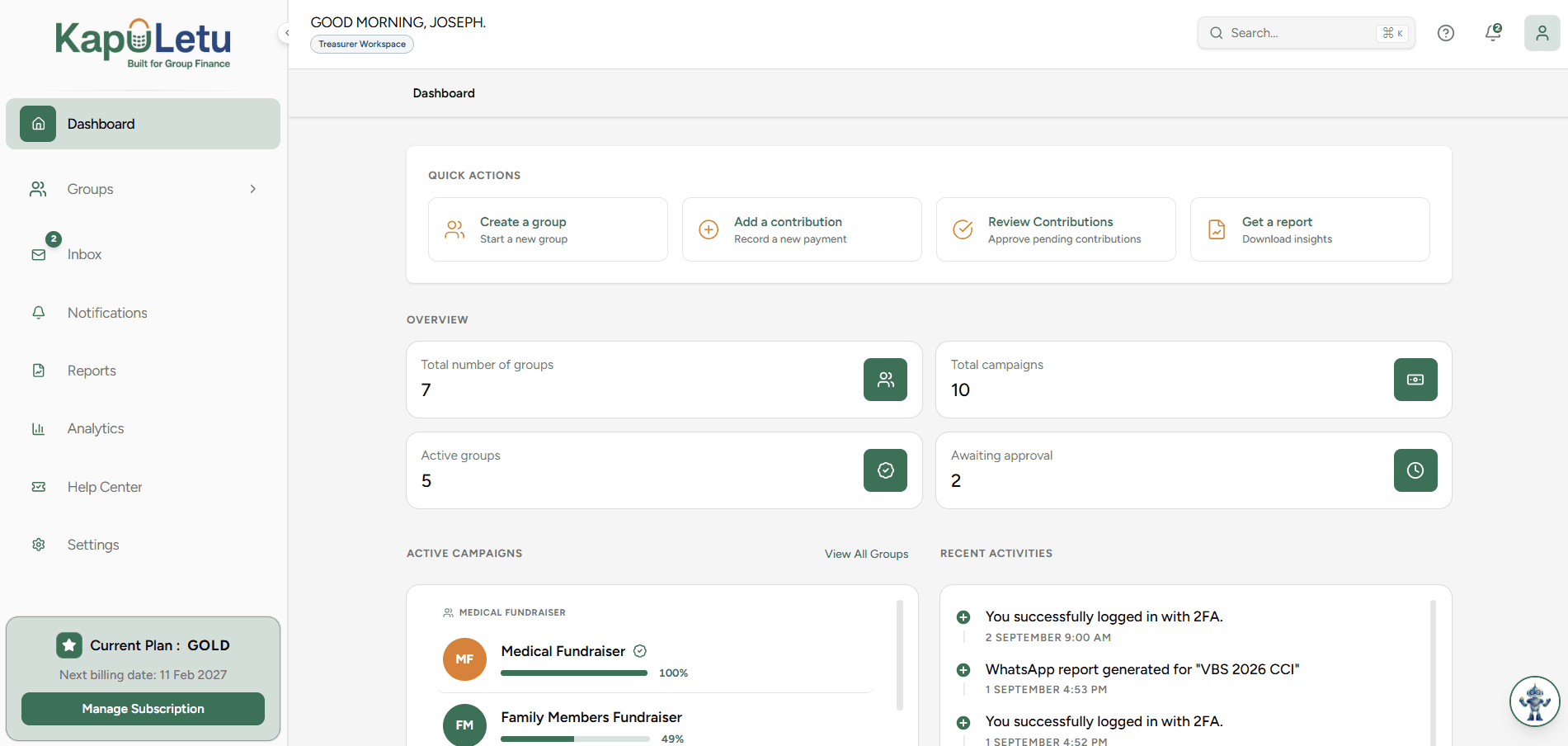
Open the group and click 'Add contribution' next to its name. From the Inbox or dashboard, use 'Paste or add contributions'.
2
Choose 'Enter manually'
Switch to the 'Enter manually' tab. (To record M-Pesa SMS, paste them instead.)
3
Enter the details
Type the contributor's name, phone (optional), amount and payment type: Cash, M-Pesa, Bank or Pledge. Outside a group, pick the group too.
4
Add Contribution
Click 'Add Contribution'. It is recorded in the group straight away and sealed in the ledger.
Manual vs pasted
A contribution you type in is recorded immediately, because you entered it yourself. Pasted M-Pesa messages show a preview first, and you choose whether to add them to the group or review them in the Inbox.