Your First 5 Minutes With KapuLetu
A guided step-by-step checklist to complete your first end-to-end treasury workflow.
The best way to learn KapuLetu is to use it. In this guide, we will walk you through a complete cycle: from creating a group to generating a financial report.
The 6-Step Workflow
Open the Groups Page
Click Groups in the sidebar. Every group you collect money for lives here, and you can organise them into collections later if you need to.
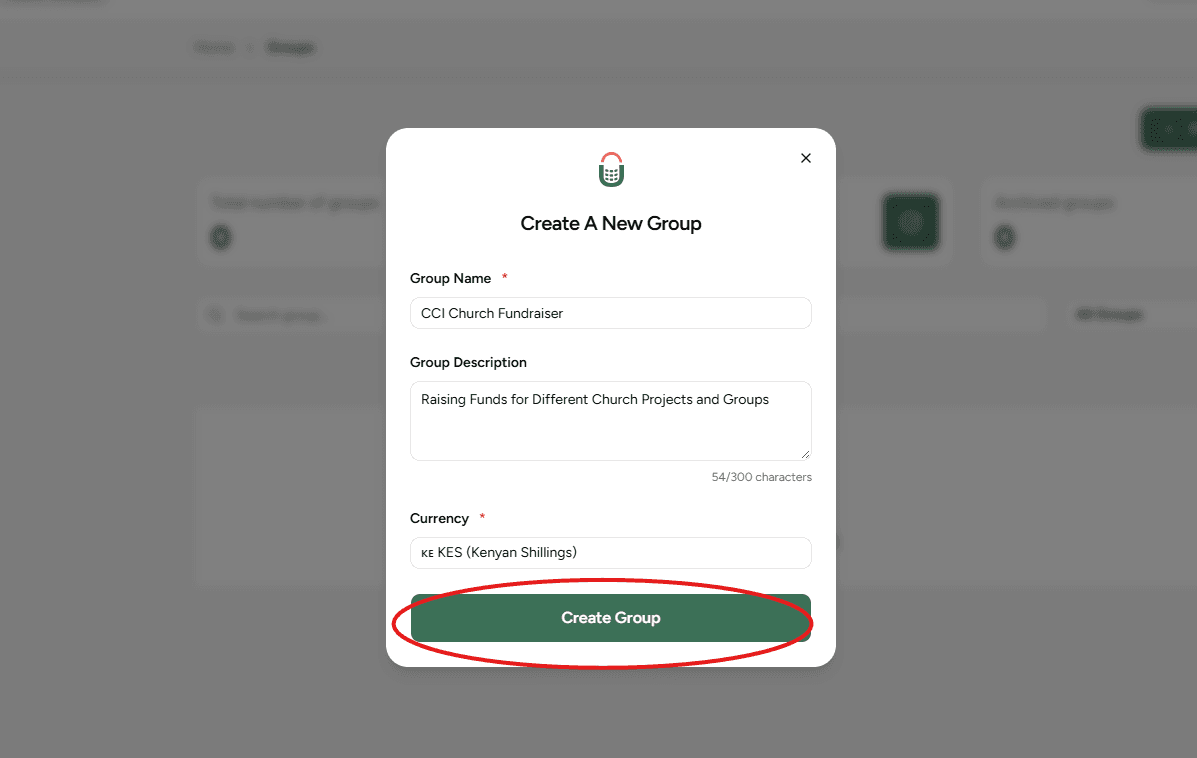
Create a Group
Click 'New Group'. A group is a specific fundraising activity with a defined goal, like 'Monthly Welfare' or 'Church Roof'.
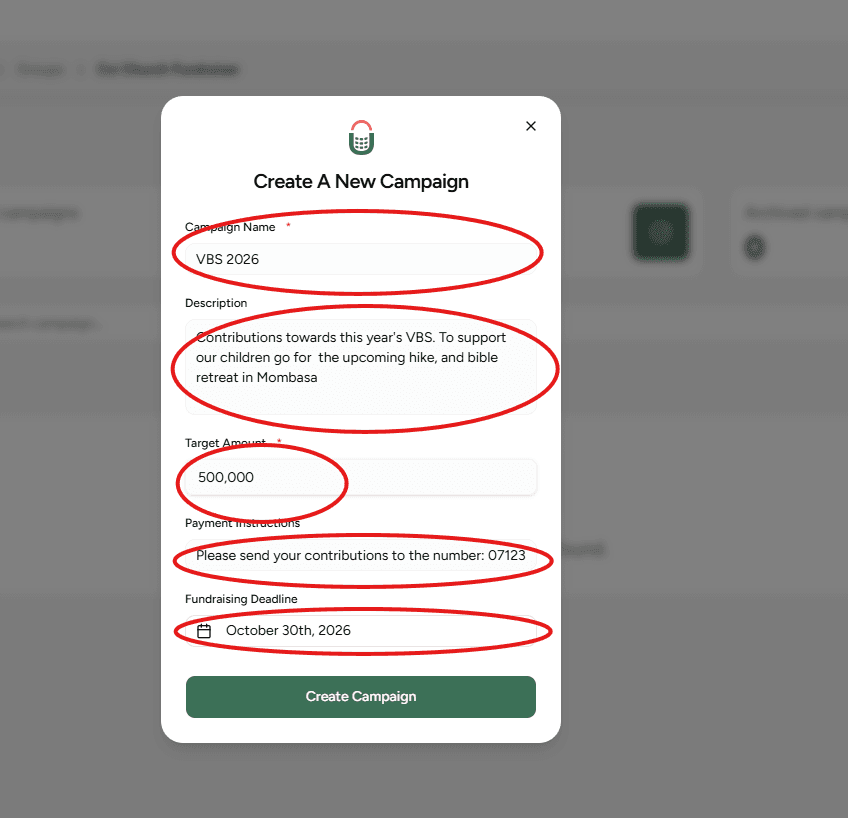
Click 'Add Contribution'
Open your group and click the 'Add Contribution' button to start recording a test cash payment manually.
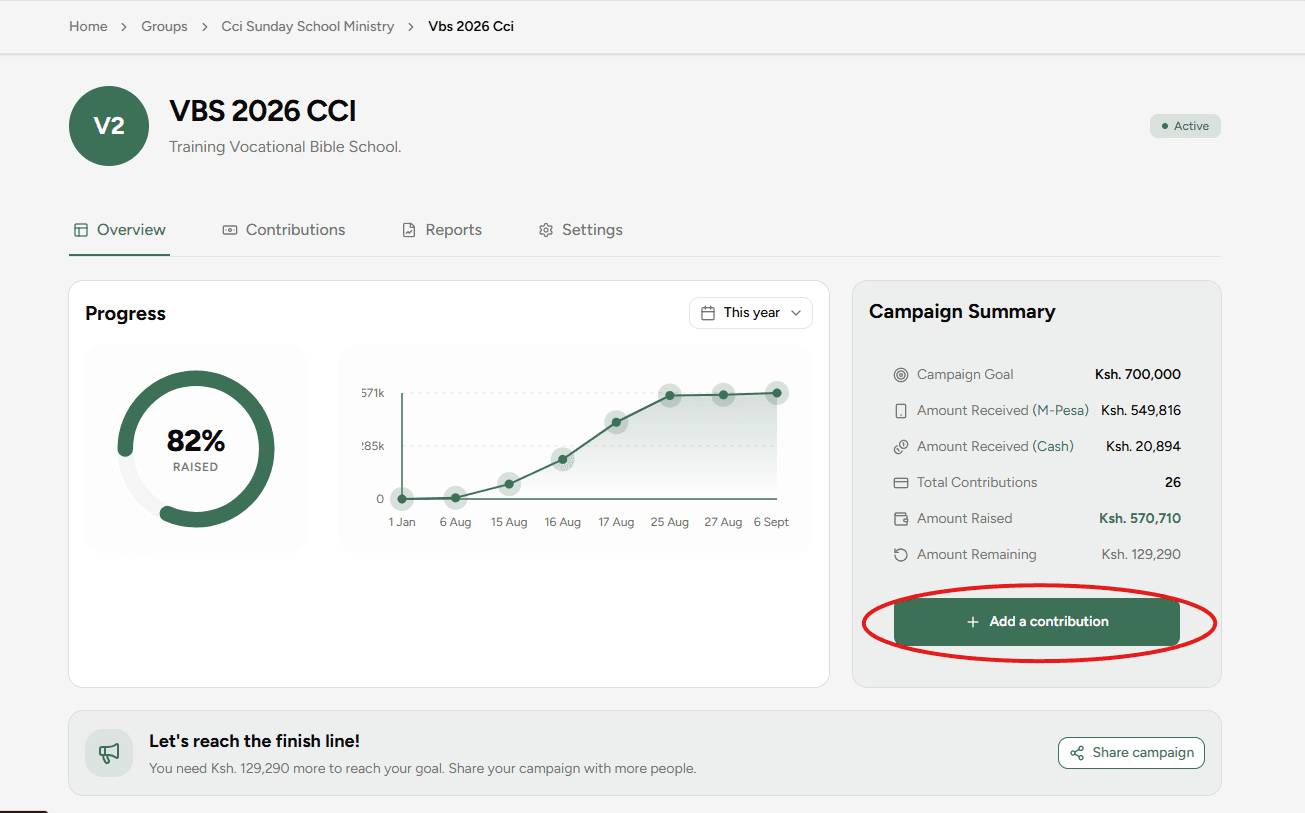
Fill the Contribution Form
Enter the contributor's details, the amount, and the date. This structured form ensures you capture all necessary evidence for a clean audit trail.
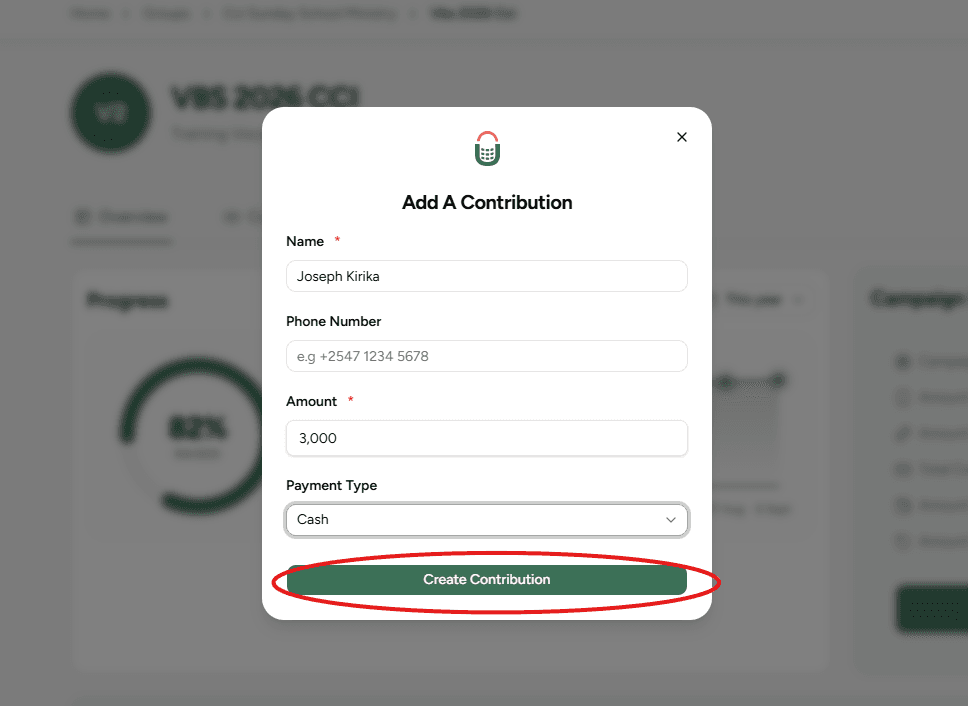
Contribution Logged
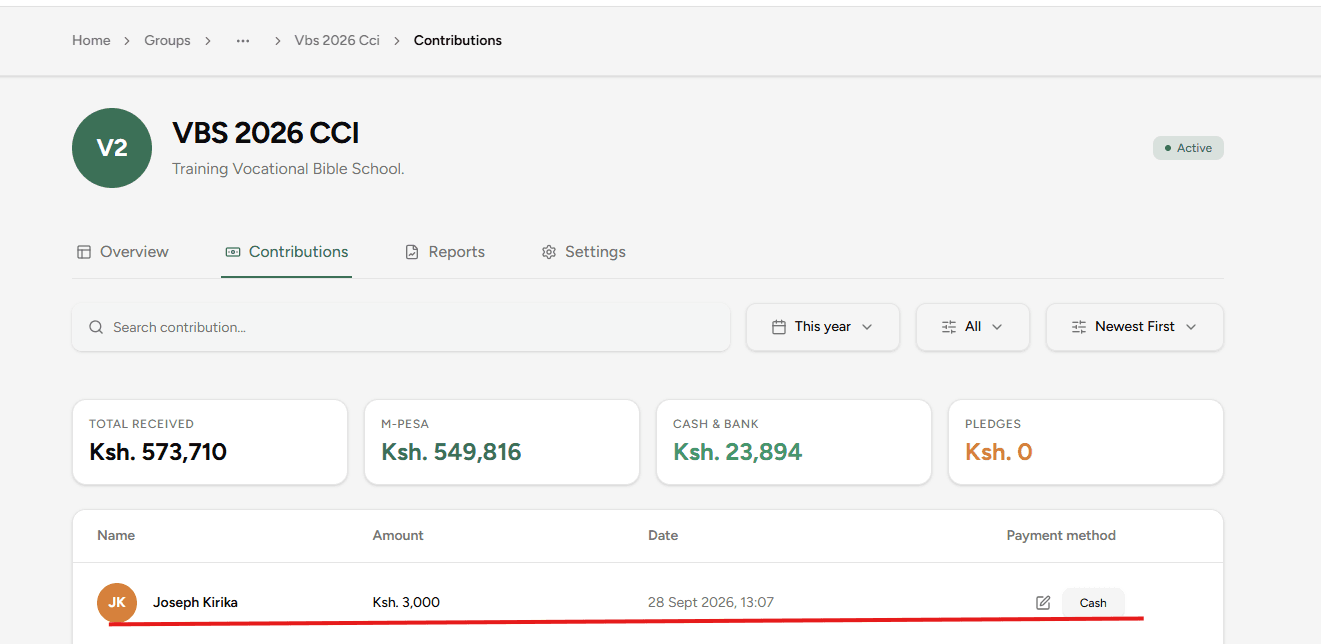
Once submitted, the system securely logs the payment. Now click on the contributions tab inside the group to check on your contributions.
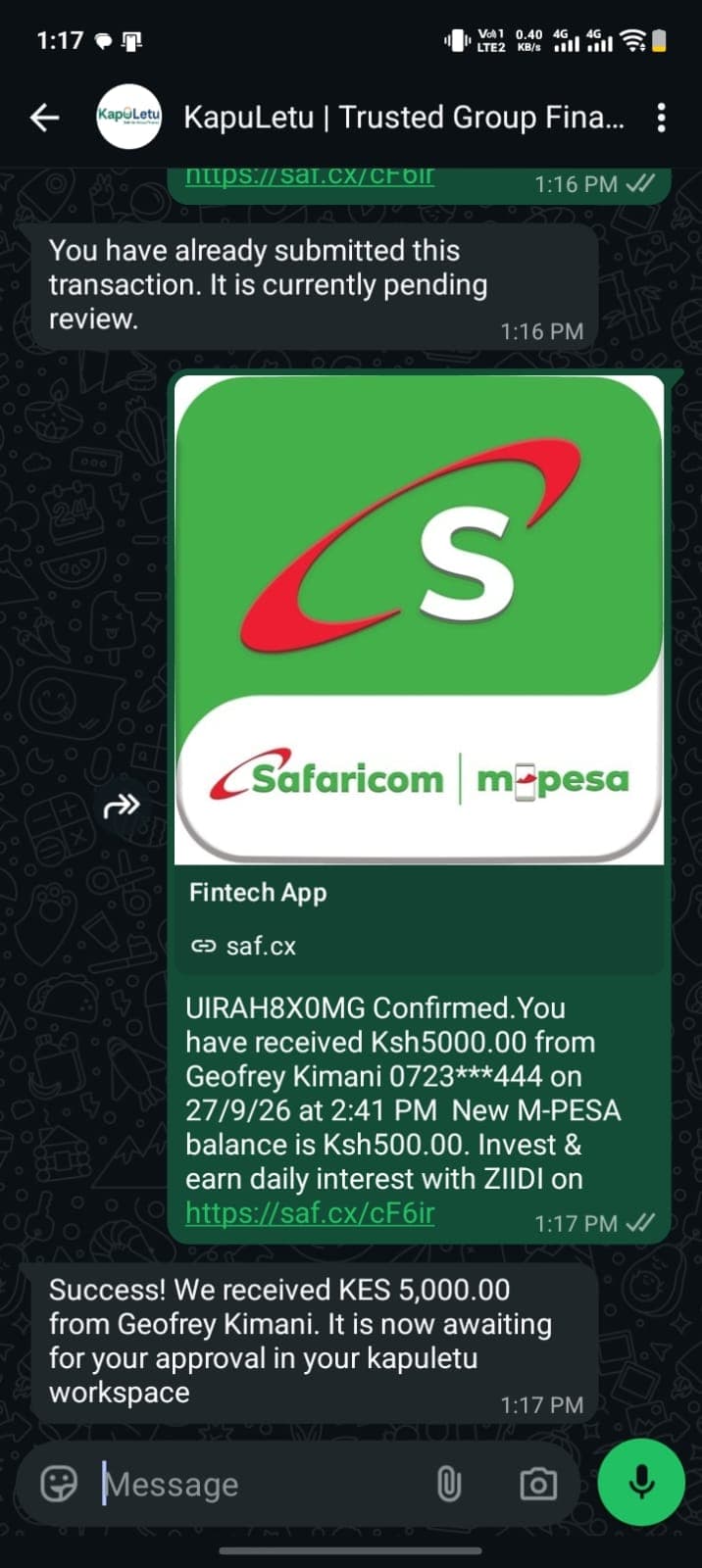
The WhatsApp Assistant (Pro Tip)
Once your account is active, you don't need to add contributions manually! You can simply forward M-Pesa payment messages directly to the KapuLetu WhatsApp Assistant, which will instantly queue them in your Inbox. We'll deep-dive into this in the WhatsApp Guide.
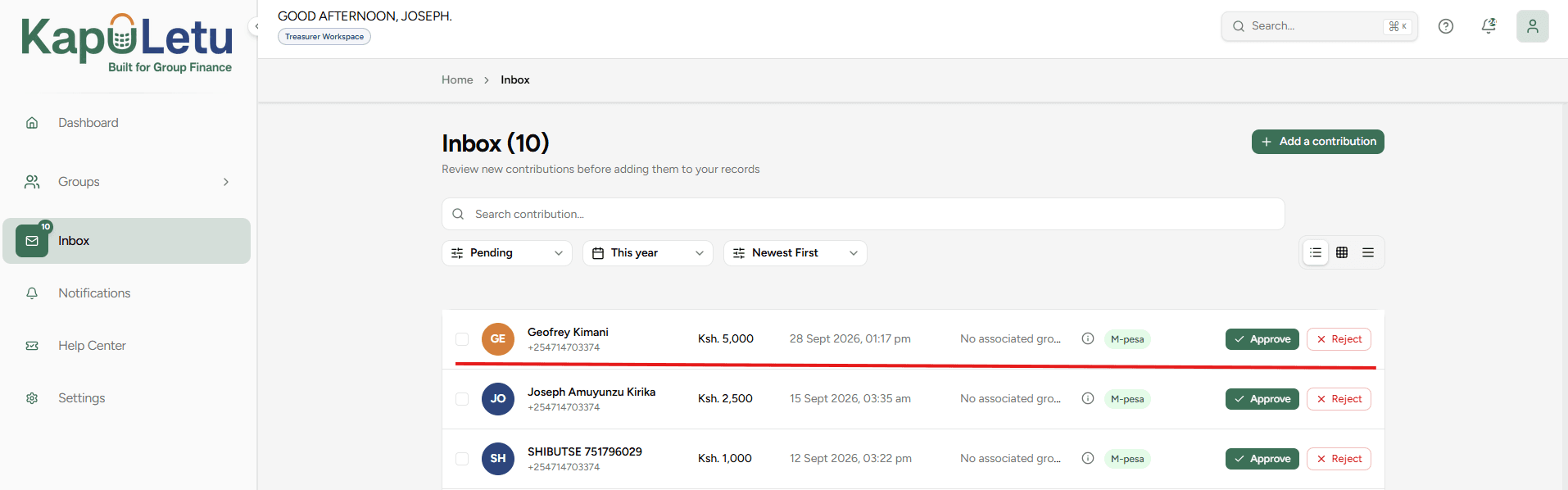
Inbox Approval & Splitting
Go to your Inbox to review unverified contributions. Here, when you click the approve button you will be able to 'Split' a single bulk payment (e.g., receiving KES 5000 and allocating 1000 to yourself, 2000 to Family, and 2000 to James) before clicking 'Approve' to commit it to the official report.
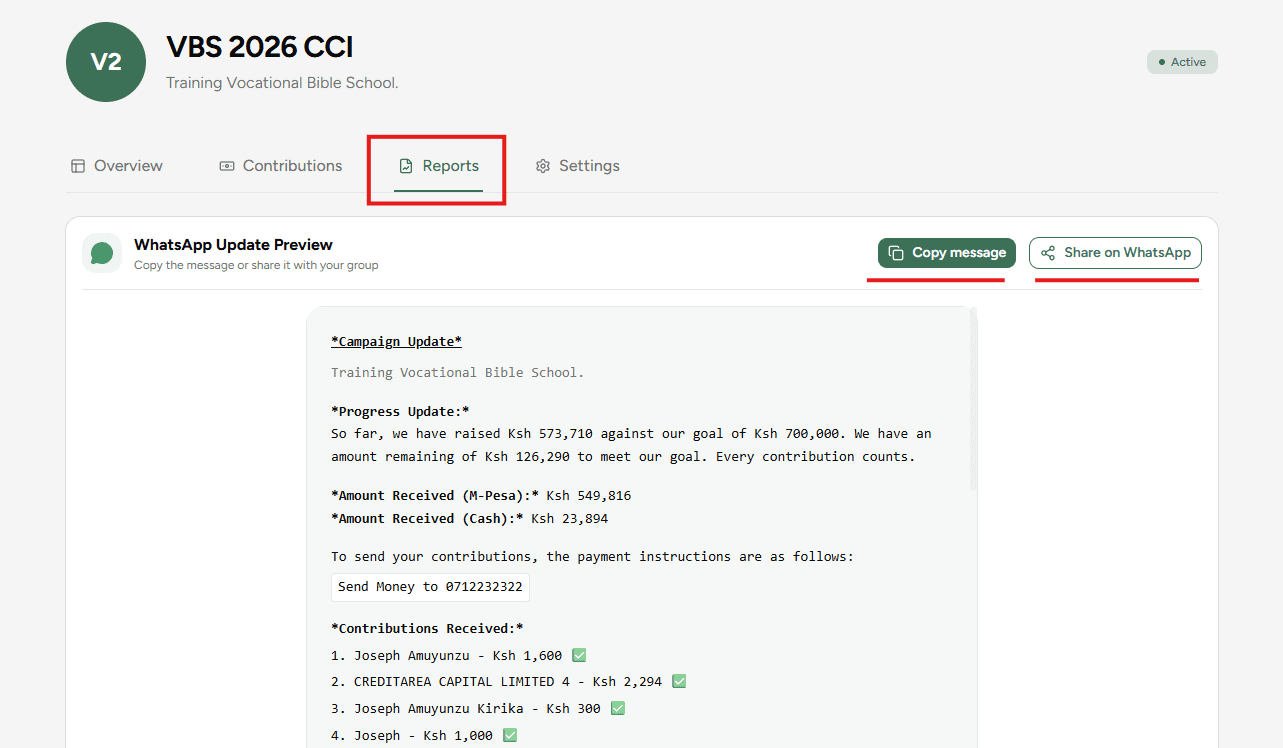
1. WhatsApp-Ready Reports
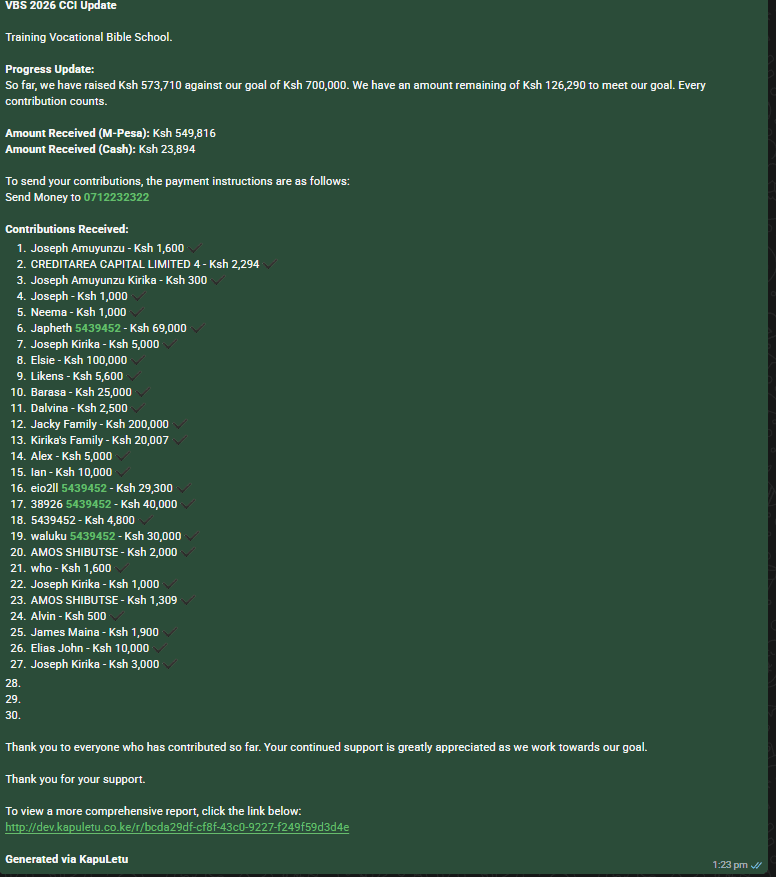
Navigate to Reports. You can instantly preview a beautifully formatted text summary and share it directly to your WhatsApp group with one click.
2. Official PDF Statements
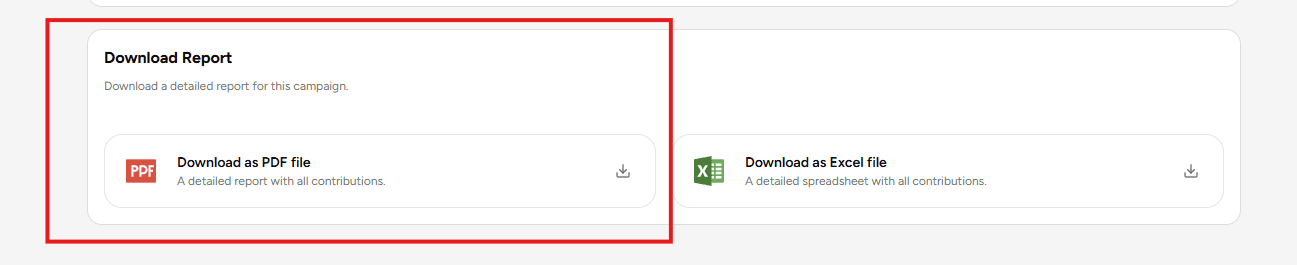
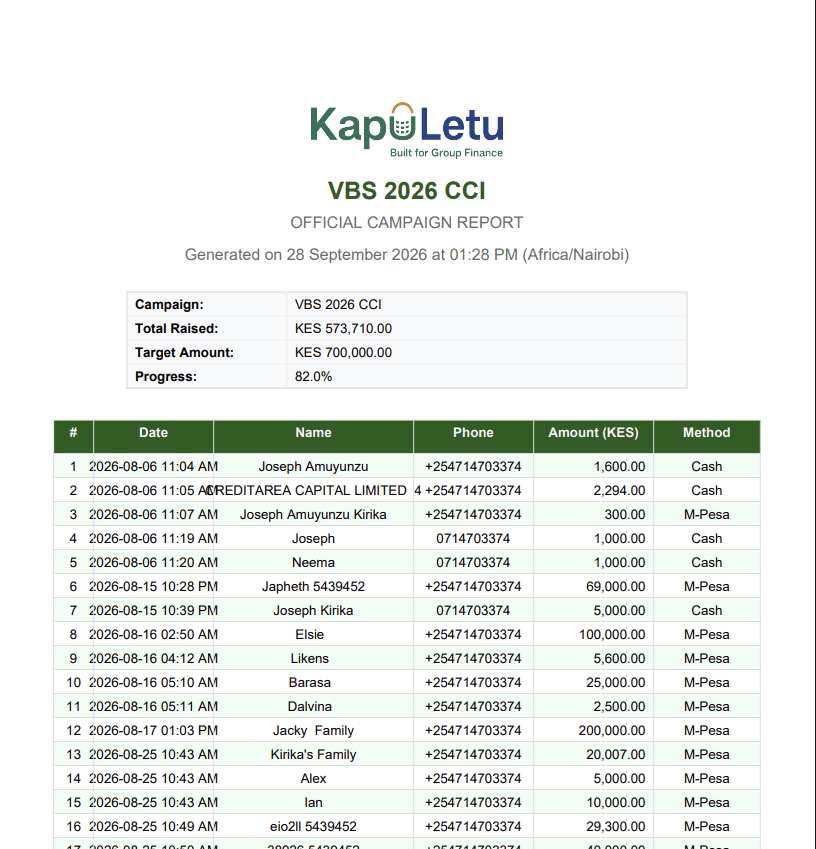
Need something formal for a meeting? Click Download PDF to generate a branded, official document summarizing the group's progress and member balances.
3. Detailed Excel Exports
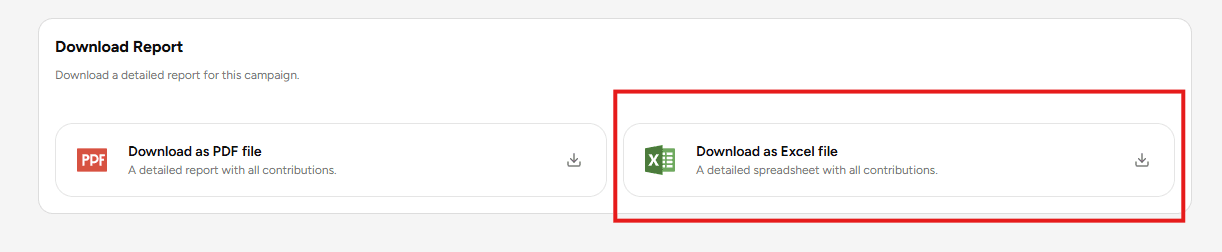
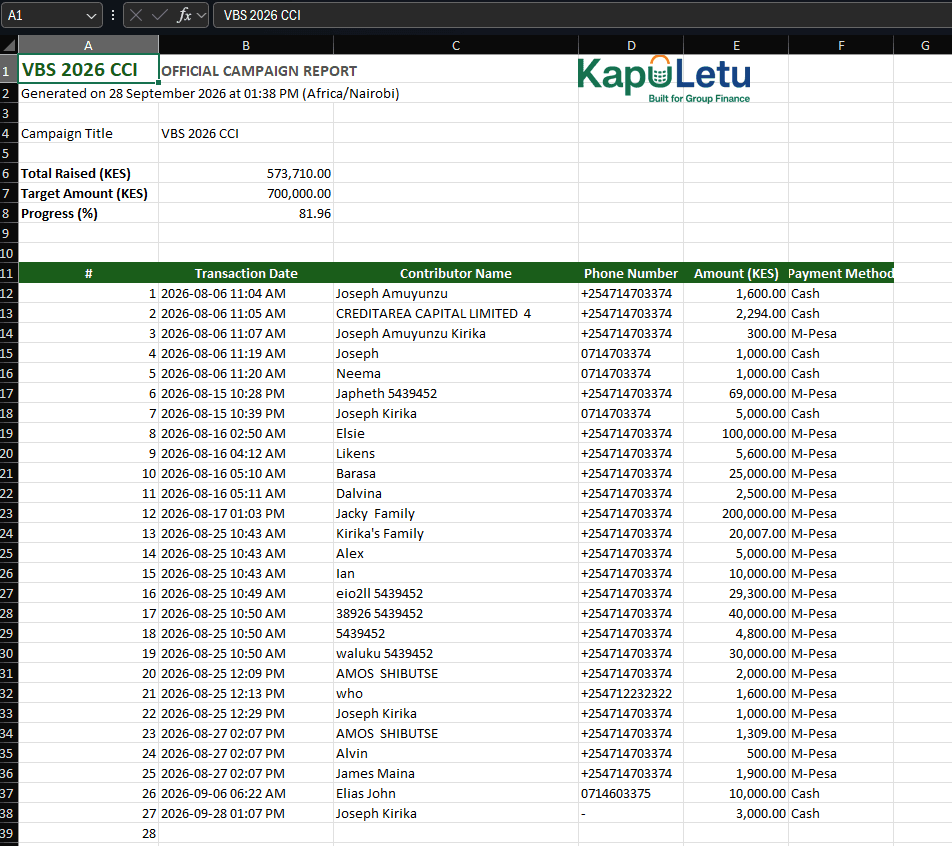
For deep-dive auditing, generate an Excel Report. This gives you a raw, spreadsheet-ready breakdown of every single transaction and member contribution.
4. Public View Online Link
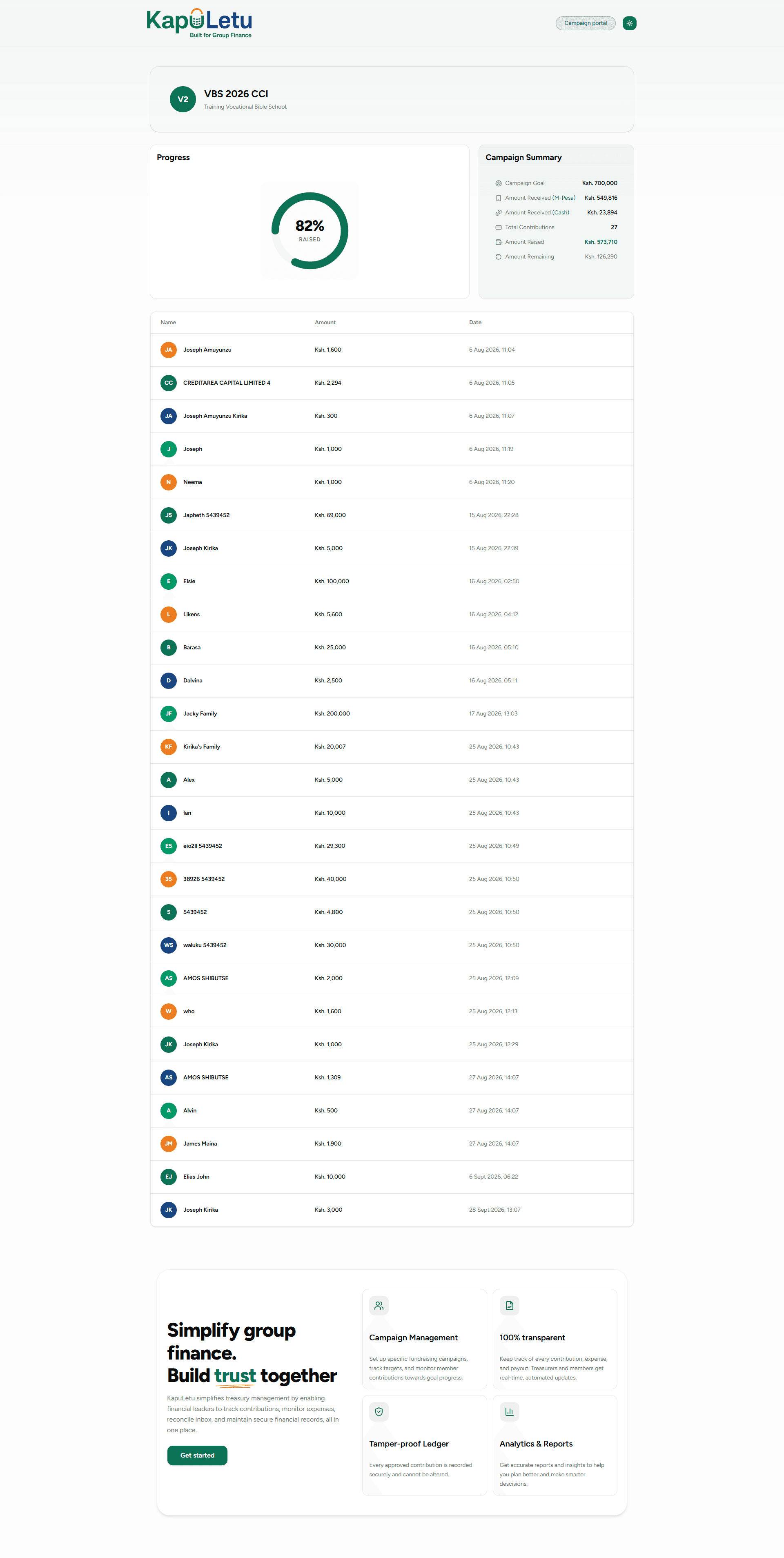
Don't want to keep downloading reports? Generate a Public Link and share it with your members. They can visit this live URL anytime to track the group's progress themselves! Note: This link is pin protected , so you will have to share the pin with your members so that they can access the report. You can always regenerate this pin anytime in your group settings.

Congratulations!
You have completed your first treasury workflow.
11 / 11 steps completed
Want to automate this?
Learn how to connect WhatsApp so you don't have to add contributions manually.
Read the WhatsApp Guide →Explore Your Dashboard
Learn how to read your financial overview and track group progress at a glance.
View Dashboard Guide →